Customize e-mail notifications
You can customize the e-mail notification layout by editing the HTML template. You can, for example, adapt font size and font color as well as the background color.
Additional prerequisite
You know how to edit HTML code.
Click
 Application launcher >
  Collaboration.
Under Administration, click
 Configure notifications.
Click Customization. The HTML template is displayed.
Edit existing HTML tags or add new ones. See the example below.
Under the HTML template, click
 Help to receive information about important keywords used in the HTML template.
Click
 Save.
Save.Under the HTML template, click
Send preview e-mail to receive an e-mail with a preview of your customized design.
The customized layout is created.
Click  Restore defaults below the HTML template to undo all the settings you have made. The default settings are loaded and the template is refreshed.
Tip
Alternatively, you can edit the template with an external HTML editor. To do so, copy the template to your clipboard ( ).
).
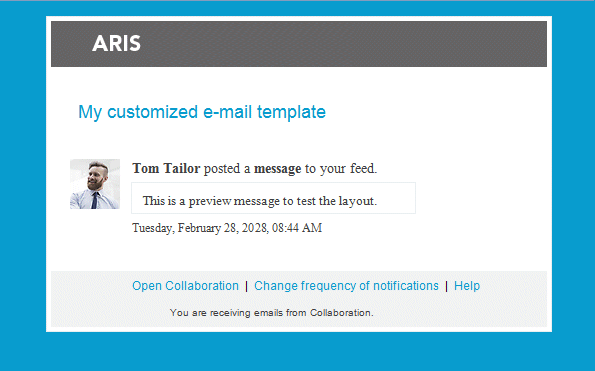
Change the background color of the e-mail and the heading.
Replace the tag <body class="mail-font-family">
with <body class="mail-font-family" style="background-color: #0899CC;"> in order to use a blue background color.
Replace the tag <h3 class="mail-heading body-heading">$emailTitle</h3>
with <h3 class="mail-heading body-heading">My customized e-mail template</h3> in order to use the heading My customized e-mail template .
Your preview e-mail should now look like this: