Switch highlighting on/off
You can highlight model elements in the Diagram fact sheet to focus on aspects to be monitored. This example illustrates the highlighting of a process model in the default view.
Prerequisites
The highlighting is configured for the model you have selected.
Click
 Application launcher >
  Published content.
If the Group tree is not visible, click the arrow in the middle on the left side to show it.
Navigate to the relevant model.
Click the name of the process model. The fact sheets are displayed.
Activate the Diagram fact sheet.
Click
 Highlighting. The Highlighting bar is opened. There are various criteria with criterion indicators sorted in different categories.
Click
 On in the Highlighting bar.
Open the relevant category and enable the criteria you want to be highlighted. To highlight all criteria of a category, enable the category check box.
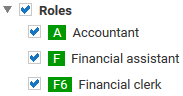
The model items that meet the selected highlighting criteria are colored and marked by the criterion indicator. The highlighting of process models remains active until you change the view or switch the highlighting off. To switch the highlighting off, click Off in the Highlighting bar.