Use favorites
Favorites enable you to quickly access database items you work with frequently. Click  Application launcher >
  My favorites.
Navigate to the model or group you want to add as a personal favorite.
Behind the model or group name, click
 Add as a favorite.
From now on, you can open the model or group under My favorites > Personal favorites. The last ten favorites saved in My favorites are also listed in Home.
If you have opened the element that is marked as a personal favorite, simply click  Remove favorite behind the name. Otherwise, follow these steps:
Click the
 down arrow of the Filter selection field in My favorites.
Click Personal favorites.
Move the mouse pointer over the relevant model or group name.
At the end of the model or group row, click
Remove favorite.
The element is removed from the favorites list.
If you have defined a filter setting in the Search area, you can use it both in the Search area, but also in My Favorites.
Click the
down arrow of the Filter selection field in My favorites.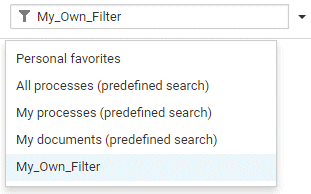
Click the name of your filter.
The content is filtered and displayed based on your filter setting.